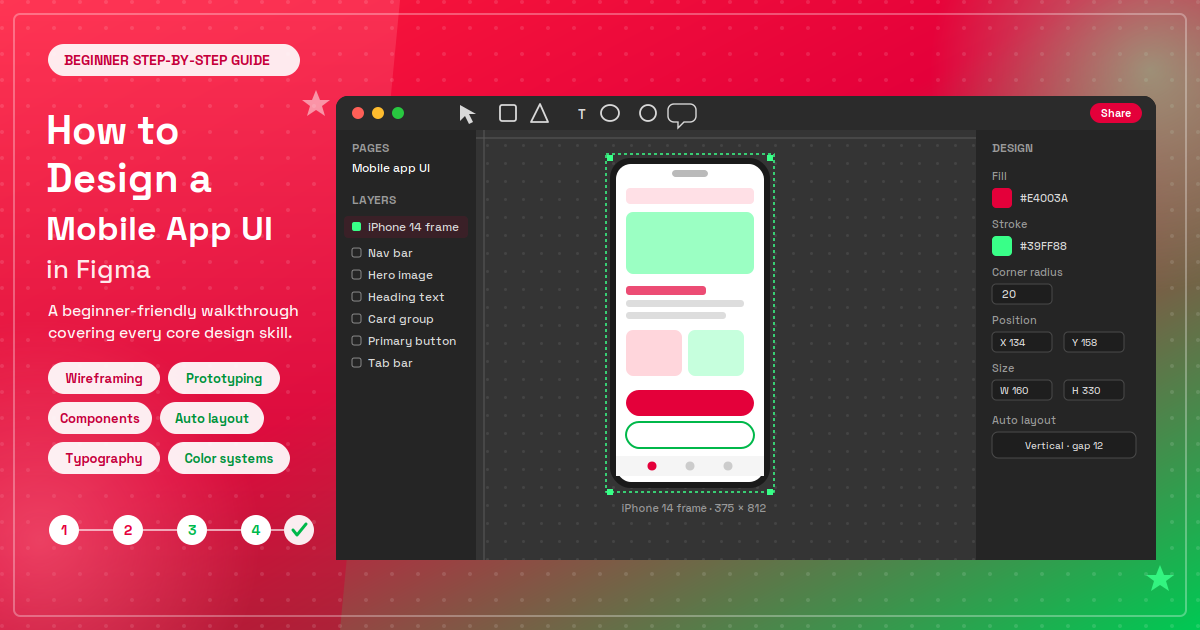
Designing a mobile app UI can seem difficult when you're just starting out. You need to think about layouts, colors, typography, buttons, navigation, and user experience.
Fortunately, Figma makes mobile app UI design easier for beginners. You can create app screens, reusable components, responsive layouts, and interactive prototypes without coding.
In this guide, you'll learn how to design a mobile app UI in Figma step by step.
What Is Mobile App UI Design?
Mobile app UI design focuses on the visual interface users interact with on a smartphone or tablet.
It includes:
Buttons and navigation
Colors and typography
Icons and images
Cards and forms
Menus and input fields
Spacing and layouts
A good UI should look professional while making the app easy to understand and use.
Why Use Figma for Mobile App Design?
Figma is widely used for UI/UX design because it combines design and prototyping in one tool.
Important Figma features include:
Frames: Create mobile app screens and layouts.
Components: Build reusable buttons, cards, menus, and other UI elements.
Auto Layout: Automatically adjust spacing and element sizes.
Prototyping: Connect screens to create interactive app prototypes.
Collaboration: Work with designers, developers, and clients in the same file.
How to Design a Mobile App UI in Figma
1. Define Your App Idea
Start by deciding what your app will do and who will use it.
For example, you could design a
Food delivery app
Fitness app
E-commerce app
Banking app
Travel app
Learning app
Clearly define the app's main goal before starting the visual design.
2. Create a User Flow
A user flow shows how users move through your application.
For example:
Login → Home → Product → Details → Cart → Checkout → Confirmation
Planning the flow first helps you avoid unnecessary screens and confusing navigation.
3. Create Your Mobile Frame
Open Figma and create a new frame using a mobile device preset.
As a beginner, start with one mobile screen size instead of designing for every device immediately.
Focus on creating a consistent layout that can later be adapted to different screen sizes.
4. Start With a Wireframe
Create a simple wireframe before adding colors and images.
A basic home screen might contain:
Header → Search → Categories → Featured Content → Products → Bottom Navigation
Use simple shapes and text to plan the layout.
Wireframing helps you solve usability and layout problems before spending time on visual details.
5. Choose Colors and Typography
Create a simple and consistent color palette.
Your UI might include:
Primary color
Background color
Card/surface color
Primary text
Secondary text
Success and error colors
For typography, choose a readable font and establish a hierarchy for headings, body text, and captions.
Consistency is more important than using many colors or fonts.
6. Create Reusable Components
Instead of designing every element separately, use Figma Components.
Create reusable components for:
Buttons
Input fields
Cards
Navigation bars
Toggles
Icons
For example, create one primary button component and reuse it throughout your app.
This keeps your UI consistent and makes future changes much faster.
7. Use Figma Auto Layout
Auto Layout is one of the most useful Figma features for UI design.
It allows elements to automatically adjust when their content or size changes.
For example, a button containing "Continue" can expand automatically when the text changes to "Continue to Checkout."
Auto Layout is particularly useful for:
Buttons
Cards
Lists
Forms
Navigation
Responsive layouts
Learning Auto Layout early can significantly improve your Figma workflow.
8. Design the Main App Screens
Depending on your project, your app may include:
Splash screen
Login/signup
Home screen
Search
Product or content details
Cart
Checkout
Profile
Don't create unnecessary screens. Design only the screens needed to complete the user's main tasks.
9. Design Clear Navigation
Make it easy for users to move between important sections.
For example:
Home | Search | Favorites | Profile
Use consistent icons and clearly highlight the active section.
Good navigation should feel predictable rather than requiring users to figure out where to go next.
10. Create an Interactive Prototype
Once your screens are ready, use Figma's Prototype feature to connect them.
For example:
Login → Home
Product → Product Details
Add to Cart → Cart
Checkout → Confirmation
You can then preview the prototype and test the user journey before development begins.
Mobile UI Design Best Practices
Keep these principles in mind when designing your app:
Keep It Simple
Don't overcrowd the screen. Prioritize the most important information and actions.
Use Consistent Spacing
A consistent spacing system makes your interface look organized. Many designers use a 4px or 8px spacing system.
Make Text Readable
Use appropriate font sizes and sufficient contrast.
Design for Accessibility
Consider contrast, touch targets, readable text, and clear labels.
Use Realistic Content
Test your components with longer names, different images, and realistic text rather than relying only on placeholders.
Don't Overuse Animations
Animations can improve an interface, but excessive motion can distract users.
Common Figma UI Design Mistakes
Avoid these common beginner mistakes:
Using too many colors or fonts
Inconsistent spacing
Small or difficult-to-read text
Confusing navigation
Designing without a user flow
Creating repeated elements manually instead of using components
Ignoring different content lengths
Using components and auto layout can solve many of these problems.
Can You Design a Mobile App in Figma Without Coding?
Yes. You don't need coding skills to create a complete mobile app UI and interactive prototype in Figma.
However, Figma is primarily a design and prototyping tool. A production app still needs to be developed using technologies such as Flutter, React Native, Swift, Kotlin, or other development frameworks.
Your Figma design can serve as the visual and interaction blueprint for developers.
Final Thoughts
Learning how to design a mobile app UI in Figma is a great way to start your UI/UX design journey.
Begin with a small project and focus on the fundamentals:
User Flow → Wireframes → Layout → Typography → Colors → Components → Auto Layout → Prototype → Testing
With regular practice, you can move from simple beginner designs to professional mobile app interfaces and build strong projects for your UI/UX portfolio.
Frequently Asked Questions
Is Figma good for beginners?
Yes. Figma is beginner-friendly and allows you to create UI designs and prototypes without coding.
Can I design an entire mobile app in Figma?
Yes. You can design all the screens and create an interactive prototype in Figma.
Do I need coding skills to use Figma?
No. Coding is not required for designing mobile app interfaces in Figma.
What should I learn first in Figma?
Start with frames, layers, shapes, text, components, auto layout, and prototyping.